
Cloning the Project
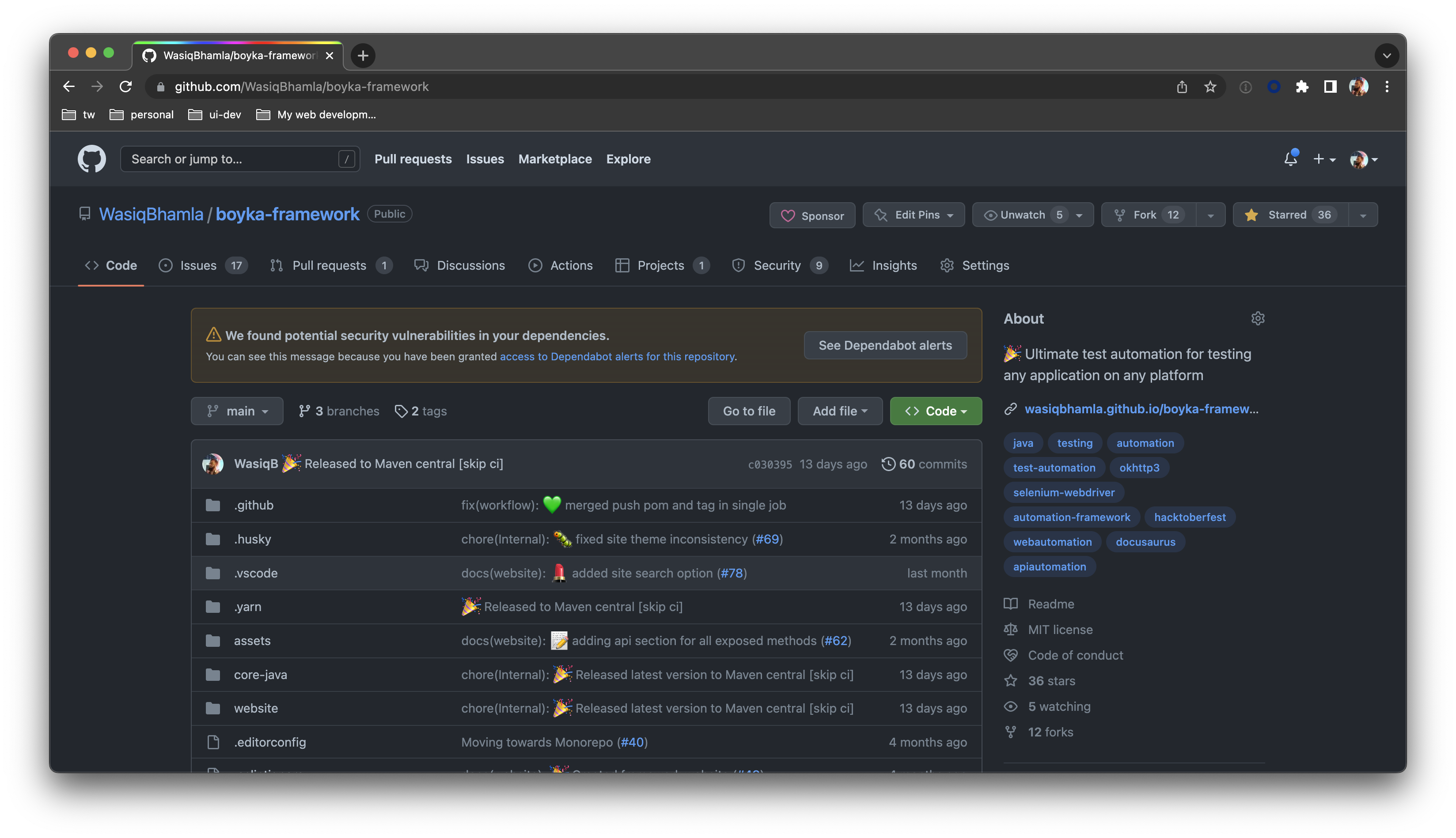
The first step to take before you start contributing to this project is to Clone the project. Run the following command if you want to clone usingSSH:
HTTPS:
SSH, HTTPS and Github CLI can be found on the github repo main page as well.
Setting up the project
To build the project,pnpm is required to be installed on your machine.
On Mac OS, run the following command:
pnpm was installed correctly on your machine:
Core framework project
The core framework project is located incore-java/ directory.
Install Maven
Maven is the build tool we would be using for this project. So need to have Maven installed on your machine before you proceed to build the project.
:::danger Minimum Maven version check
Minimum version for Maven 3.9.0 is required, else, project will not build
:::
In case Maven is not installed on your machine, the following steps should help.
Installing Maven on Windows
- Download the Maven Zip File from the maven download page and extract it.
- Add
MAVEN_HOMESystem Variable.- Open the Start menu and search for environment variables. Click on the Edit System environment variables result.
- Under the Advanced tab in the System Properties window, click Environment Variables.\
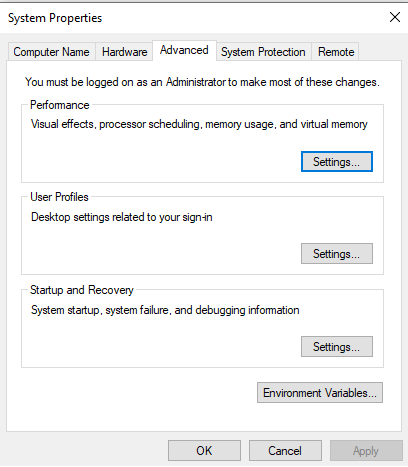
- Click the New button under the System variables section to add a new system environment variable.
- Enter
MAVEN_HOMEas the variable name and the path to the Maven directory as the variable value. Click OK to save the new system variable.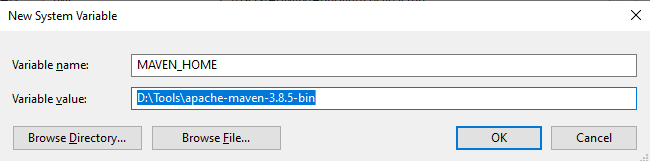
- Add
MAVEN_HOMEdirectory in the PATH Variable.- Select the Path variable under the System variables section in the Environment Variables window. Click the Edit button to edit the variable.
- Click the New button in the Edit environment variable window.
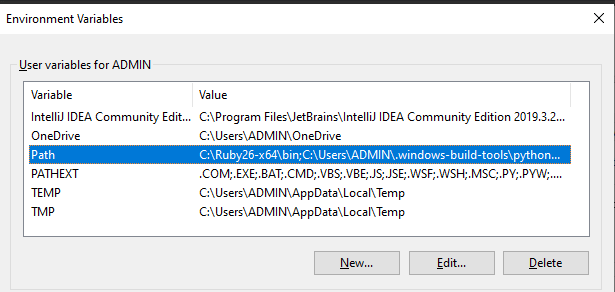
- Enter
%MAVEN_HOME%\binin the new field. Click OK to save changes to the Path variable. - Click OK in the Environment Variables window to save the changes to the system variables.\
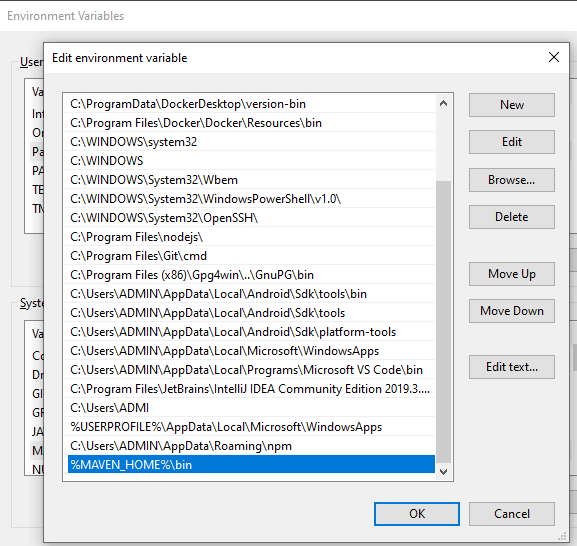
- Verify if Maven is installed correctly.
- Open Command Prompt and run the command:
mvn -v - It should display the Maven version as shown in the screenshot below:
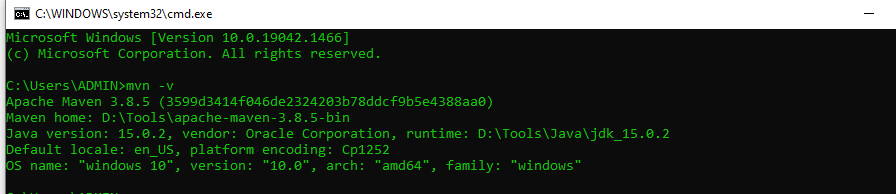
- Open Command Prompt and run the command:
Installing Maven on MacOS
Installation of Maven on a Mac machine can be easily done using the Homebrew package manager. After installing Homebrew, just run the commandbrew install maven, and it will install Maven within seconds on your machine, and you could straight away start using maven.
Build the Core project
Once Maven installation is complete, from the root repository directory, run the following command:Documentation project
The documentation project is located inwebsite/ directory.
Install Node >= v16.15.0
- Install NVM (Node Version Manager) on your machine.
- Open your terminal or command prompt and run the following command:
curl -o- https://raw.githubusercontent.com/nvm-sh/nvm/v0.39.1/install.sh | bash - Run the following command to set up the project:
nvm install - Verify if Node is installed correctly.
- Open Command Prompt and run the command:
nvm -vandnode -v - It should display the NVM and Node version as shown in the screenshot below:
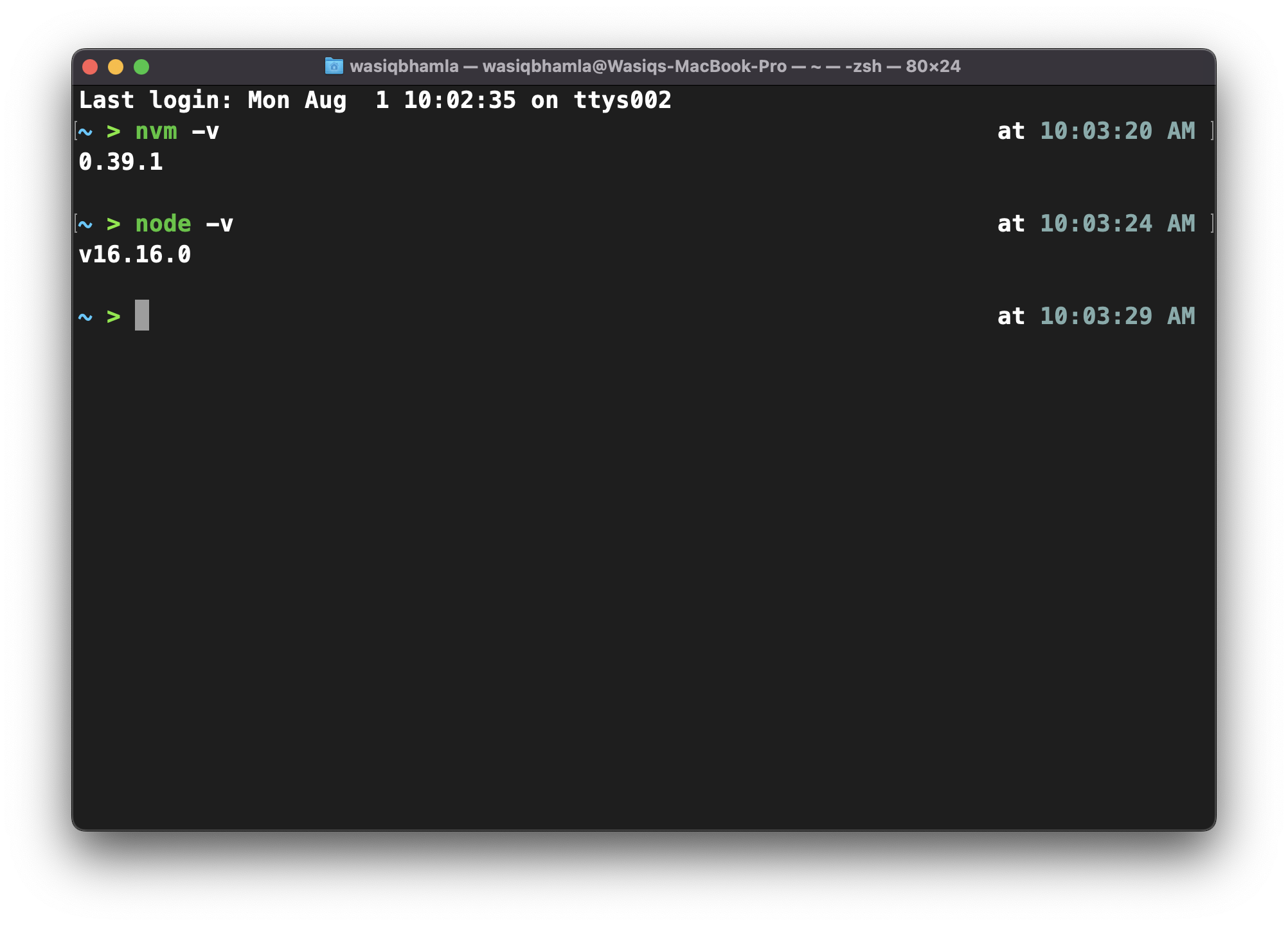
- Open Command Prompt and run the command:
Build the documentation project
To build the documentation project, navigate to the root folder of the project and run the following command:Run the project
From the root repository directory, run the following command:localhost:3000 and will constantly watch on any changes you do in the project.
Upgrade outdated dependencies
:::danger Dependency upgrade will only be done byboyka-core team members.
:::
From the root repository directory, run the following command: